Canned responses: what they are, and 40 examples
A canned response is a reply you wrote once and send many times. Done badly, it is the message everyone recognises as a form letter. Done well, it is the fastest accurate answer a customer will get all day. The difference is almost entirely in how it is written and what you change before sending.
Short answer: a canned response is a pre-written reply to a recurring question or situation, saved so it can be inserted rather than retyped. The name comes from canned food — prepared in advance, opened when needed. Help desks call them canned responses or macros; Gmail called them Canned Responses before renaming the feature Templates; text expanders call them snippets or templates. Same idea.
Canned response meaning, and where the term comes from
The phrase started in customer support, where a small number of questions account for most of the volume: where is my order, how do I reset my password, can I get a refund. Agents who answered these from memory typed inconsistent answers at inconsistent speeds, so support teams began saving approved wording that anyone could send. Ticketing systems built the idea in and named it — canned responses in Freshdesk and Genesys, macros in Zendesk, saved replies in Help Scout and GitHub, snippets in Intercom.
Outside support, the same thing happens without the name. Recruiters have a standard outreach message, founders have a standard investor reply, managers have a standard “can we move this to a thread” nudge. Anyone who has ever kept a document of paragraphs to paste from is already using canned responses.
When a canned response is the right tool
Three tests. If a reply passes all three, save it.
- It repeats. You have sent something close to it at least three times, and expect to send it again.
- It has a stable core. The structure and most of the sentences do not depend on the person you are replying to. Only a few details change.
- Getting it exactly right matters. A refund policy, a legal disclaimer, a set of troubleshooting steps — wording where an improvised version might be wrong.
And two cases where it is the wrong tool: a reply that needs judgment before it can be written (an escalation, an apology for something you have not yet understood), and a reply where the reader expects to be treated as a person rather than a case number. Those are the replies to draft fresh, or to draft with AI from the message in front of you, and then edit.
How to write one that does not sound canned
- Answer the question in the first sentence. Greetings and thanks-for-reaching-out belong after the answer, not before it.
- Make every changeable detail a variable. The examples below use
{{double braces}}. A name field that has to be filled cannot be sent as “Dear Customer” by accident. - Leave one sentence for this conversation. The template carries the structure; the specific sentence proves someone read the message.
- Keep it short enough to read in a chat window. If a response needs three paragraphs, it is probably a help article with a canned response linking to it.
- Name it by situation, not by number. “Refund outside window” is findable in a hurry; “Response 14” is not.
Live chat and support ticket examples
1. Greeting
Hi {{name}}, thanks for reaching out. I’m {{agent_name}} and I’ll be helping you today. I can see you’re asking about {{topic}} — give me a moment to look at your account.
2. Acknowledge and set an expectation
Got it — I understand the problem is {{one_line_summary}}. I’m looking into it now and will have either a fix or a next step for you within {{time}}.
3. Ask for one missing detail
To narrow this down I need one thing from you: {{specific_detail}}. If you can also send {{screenshot_or_log}}, that will let me skip a few steps.
4. Standard troubleshooting steps
Let’s rule out the most common cause first. Could you try the following?
1. {{step_one}}
2. {{step_two}}
3. {{step_three}}
If the problem is still there afterwards, reply here and I’ll take it further on our side.
5. Known issue
Thanks for flagging this. It’s a known issue with {{feature}} that our team is already working on. I’ve added your account to the ticket so you’ll be notified when it’s fixed. The current workaround is {{workaround}}.
6. Escalation to another team
This needs a closer look from our {{team}} team, so I’m passing it to them with everything you’ve told me — you won’t need to repeat yourself. They’ll reply on this same thread within {{time}}.
7. Resolved, checking in
Good news — {{issue}} should now be fixed. Could you try {{action}} once more and confirm it’s working on your side? If it is, I’ll close this out; if not, I’m still here.
8. Closing a ticket after no reply
I haven’t heard back since my last message, so I’ll close this for now. Nothing is lost — if the problem comes back, reply here and it reopens with the full history attached.
9. Feature request
Thanks for the suggestion — {{feature}} isn’t something we support today. I’ve recorded the request with your use case ({{use_case}}) so the product team sees the demand for it. I can’t promise a timeline, but I’ll let you know if it ships.
10. Outside scope
This one is outside what we can help with directly, since {{reason}}. The best place to get it answered is {{resource_or_contact}}. Sorry I can’t take it further from here.
Billing, refunds, and account examples
11. Refund within policy
I’ve issued a refund of {{amount}} to your original payment method. It usually appears within {{days}} business days depending on your bank. You’ll get an email confirmation shortly.
12. Refund outside policy
I’ve checked, and this purchase is outside our {{window}} refund window, which means I can’t reverse it. What I can do is {{alternative}}. Let me know if you’d like me to go ahead.
13. Cancellation confirmed
Your subscription is now cancelled. You’ll keep access until {{end_date}}, and you won’t be charged again. If you change your mind before then, you can resume from {{location}} without losing anything.
14. Failed payment
Your latest payment for {{plan}} didn’t go through — usually an expired card or a bank block. You can update the card at {{link}}. We’ll retry automatically on {{date}}, and your account stays active until then.
15. Password or access reset
I’ve sent a reset link to {{email}}. It expires in {{minutes}} minutes. If it doesn’t arrive, check spam and confirm that the address above is the one on the account.
16. Invoice request
Here’s the invoice for {{period}}: {{link}}. If you need a company name, tax ID, or address added, reply with the details and I’ll reissue it.
Sales and inquiry examples
17. Inbound inquiry reply
Thanks for your interest in {{product}}. Based on what you described — {{their_goal}} — the {{plan}} plan is the closest fit. The quickest way to see if it works for you is {{trial_or_demo}}. Happy to answer anything before then.
18. Pricing question
Pricing is {{price}} for {{plan}}, billed {{cadence}}. That includes {{included}}. There are no setup fees, and you can cancel at any time. Full details are at {{link}}.
19. Demo follow-up
Thanks for your time today. As discussed, the two things that matter most for you are {{point_one}} and {{point_two}} — here’s how each works: {{link}}. Suggested next step: {{next_step}} by {{date}}.
20. Polite no-fit
From what you’ve described, {{product}} isn’t the right tool for {{their_need}}, and I’d rather say so than sell you something that won’t work. {{alternative}} is likely a better fit. If your needs change, I’m glad to pick this up again.
21. Re-engagement after silence
Quick check-in on {{topic}} — no pressure. If the timing isn’t right, tell me and I’ll stop following up. If it is, the next step is {{next_step}}.
Reviews and social media examples
22. Positive review
Thank you, {{name}} — it’s great to hear {{specific_thing_they_praised}} is working for you. That’s exactly what we built it for. If you ever hit something that isn’t, we’re at {{support_channel}}.
23. Negative review
I’m sorry this fell short, {{name}}. You’re right that {{acknowledged_problem}}, and that isn’t the experience we want. I’d like to fix it — could you reach us at {{contact}} with {{detail_needed}} so I can look at your case directly?
24. Public complaint on social
Sorry about this, {{handle}} — that shouldn’t have happened. I’ve sent you a DM so we can sort out {{issue}} without your details in public.
25. Product question in a comment
Good question — yes, {{product}} {{does_or_does_not}} {{capability}}. The details are at {{link}}. If that doesn’t cover your case, reply and I’ll dig in.
Internal and team examples
26. Move to a thread
Good discussion — let’s move it into a thread so the channel stays readable. I’ll start it here 🧵
27. Decision recap
Decision: {{decision}}
Owner: {{owner}}
Due: {{date}}
Open question: {{question_or_none}}
28. Status update
Update on {{project}}: {{current_state}}. Next is {{next_step}}; I expect to report again by {{date}}. Blocked by: {{blocker_or_none}}.
29. Async decline
Thanks for thinking of me. I can’t take on {{request}} by {{date}} without dropping {{current_priority}}. If {{alternative}} works, I can do that instead.
30. Out of office
I’m out until {{return_date}} with limited access to messages. For anything urgent about {{area}}, contact {{backup_name}}. Everything else I’ll pick up when I’m back.
31. Welcome a new teammate
Welcome, {{name}}! Start with {{first_resource}}, then say hello in {{channel}}. I’m your contact for {{topic}} — message me any time something is unclear.
Recruiting and networking examples
32. Connection request
Hi {{name}}, I came across your work on {{specific_thing}} and wanted to connect. I’m working on {{your_area}} and would enjoy following what you’re doing.
33. Reply to a recruiter — interested
Thanks for reaching out about the {{role}} role. I’m open to hearing more. Could you share the compensation range and whether the role is {{remote_or_location}}? If those fit, I’m happy to schedule a call.
34. Reply to a recruiter — not now
Thanks for thinking of me for {{role}}. I’m not looking to move right now, but I’d be glad to stay in touch — feel free to reach out again in {{timeframe}}.
35. Interview follow-up
Thank you for the conversation today about the {{role}} role. I especially enjoyed discussing {{topic}}. If you need anything else from me for the next step, just let me know.
Short acknowledgements
The most-used canned responses are the shortest. These are worth saving even though they are one line, because they are the ones you send twenty times a day.
36. Received, will reply properly
Got it, thanks — I’ll come back to you properly by {{time}}.
37. Confirming a time
Confirmed: {{day}} at {{time}} {{timezone}}. I’ll send the {{link_or_location}} shortly.
38. Sharing a link with context
Here’s {{what_it_is}}: {{link}}. The part relevant to your question is {{section}}.
39. Thanks and close
Glad that sorted it. Thanks for your patience, and have a good {{day_part}}.
40. Apology for a slow reply
Sorry for the slow reply — {{brief_reason_or_omit}}. To answer your question: {{answer}}.
How to insert them anywhere you type
Most canned-response features are locked to one product: Zendesk macros only work in Zendesk, Gmail templates only in Gmail. The moment the same conversation moves to Slack, LinkedIn, a CRM, or a web form, you are back to a document and copy-paste.
A browser text expander stores the replies at the text-field level instead. Keyjot opens beside the cursor with one rebindable hotkey in any standard browser text field; number keys insert saved templates, the {{variables}} are detected and asked for before insertion, and the AI option drafts the replies that cannot be saved in advance from the message you have selected on the page.
- Save each response above as its own template, named by situation.
- Keep the
{{double braces}}— Keyjot turns each one into a fill-in field at insert time. - Click into the reply field on any site, press the hotkey, and pick the template by number.
- Fill the variables, add the one sentence specific to this conversation, and send.
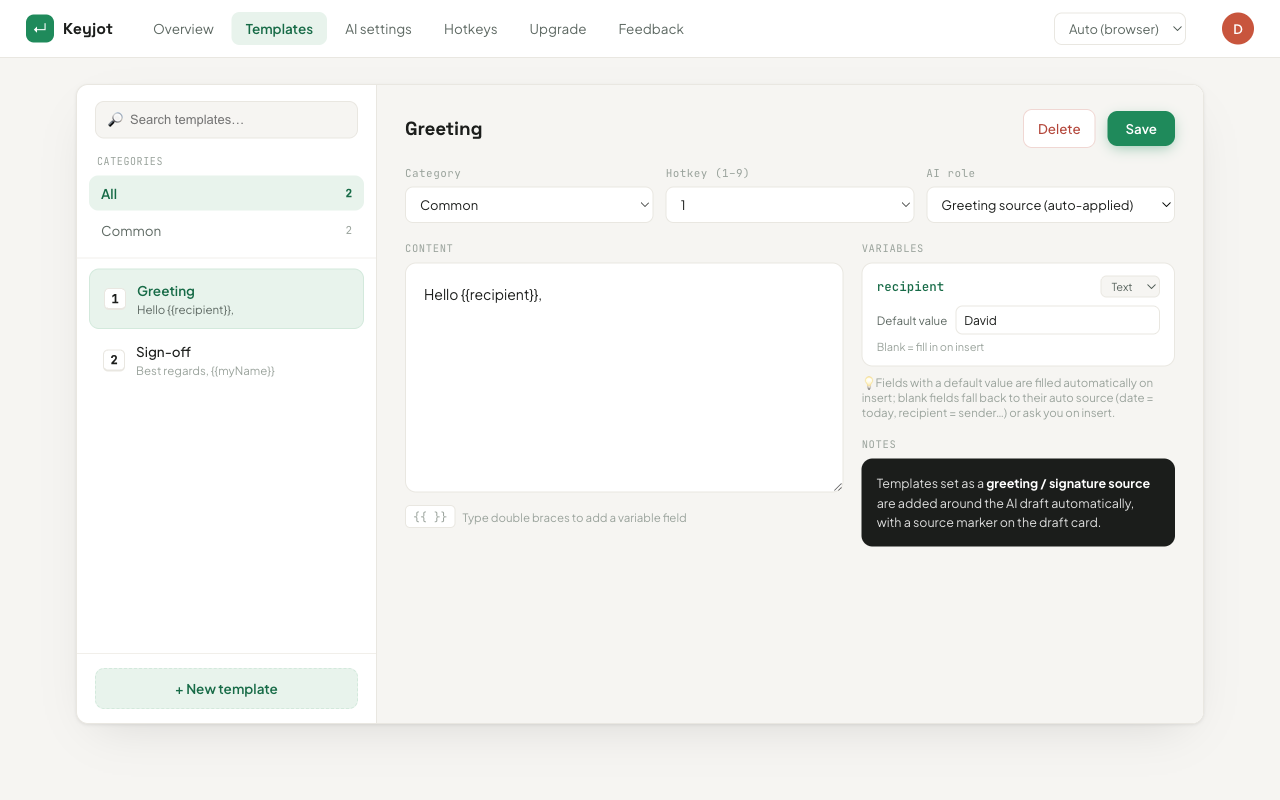
Put every canned response on one shortcut
Use the same library in support tools, Slack, LinkedIn, CRMs, forums, and any other standard browser text field.
Add Keyjot to ChromeQuestions
What does canned response mean?
A pre-written reply to a question or situation that comes up repeatedly, saved so it can be inserted rather than retyped, usually with a name, date, or detail adjusted before sending. The word canned is borrowed from canned food: prepared in advance, ready to open.
What is the difference between a canned response and a template?
In practice, nothing. Canned response is the older help-desk term; template, saved reply, snippet, and macro are the names different products use for the same feature. Gmail called its version Canned Responses before renaming it Templates.
Are canned responses bad for customer service?
Only when sent unchanged to a question they do not quite answer. An accurate canned response that addresses the specific question, with the customer’s details filled in, reads as fast and competent. The failure is the mismatch, not the reuse.
How do I use canned responses outside my help desk?
Keep them in a browser text expander such as Keyjot rather than inside one product. The same reply can then be inserted with one shortcut in a support console, Slack, LinkedIn, a CRM, a forum, or a web form.