Canned responses for Slack
Save the Slack messages you repeat — standups, status updates, support replies, onboarding notes, and moderation messages — then insert them in a channel, thread, or DM without opening a scratch document.
Short answer: regular Slack messaging has no personal canned-response library. In browser Slack, a Chrome text expander can keep reusable replies one shortcut away and insert them directly into the active message field.
What is worth saving?
A useful canned response is repeated often enough to remember but specific enough to mistype. Save the stable structure, turn changing details into variables, and leave one sentence for the context of this conversation. Do not template empathy you do not mean or decisions that still need judgment.
The examples below use {{double braces}} for details to fill before sending. They are deliberately short because Slack rewards messages that can be scanned in a busy channel.
Standups and status updates
1. Daily standup
Yesterday: {{completed}}
Today: {{next}}
Blocked by: {{blocker_or_none}}
2. Focus-time status
I’m going heads-down on {{task}} until {{time}}. Tag me if {{urgent_condition}}; otherwise I’ll catch up when I’m back.
3. Work-in-progress update
Quick update on {{project}}: {{current_state}}. Next step is {{next_step}}, and I expect another update by {{time_or_date}}.
4. Delay with a new expectation
{{deliverable}} is taking longer than planned because {{brief_reason}}. The new target is {{date}}. I’ll flag it earlier if that changes again.
Support and incident replies
5. Acknowledge a support question
Got it — I’m checking {{issue}} now. I’ll come back with either a fix or the next diagnostic step by {{time}}.
6. Ask for one missing detail
I can narrow this down with one detail: {{specific_question}}. If possible, also paste {{log_or_screenshot}} here with any private information removed.
7. Move a thread to the right channel
This needs input from {{team_or_person}}. I’m moving the context to {{channel}} and will link the new thread here so nothing gets lost.
8. Incident update
{{incident_name}} update: impact is {{impact}}. We have identified {{known_state}} and are now {{current_action}}. Next update: {{time}}.
Onboarding and team operations
9. Welcome a new teammate
Welcome, {{name}}! Start with {{first_resource}}, then say hello in {{channel}}. I’m your contact for {{topic}} — send me a DM if anything is unclear.
10. Meeting recap
Decision: {{decision}}
Owner: {{owner}}
Due: {{date}}
Open question: {{question_or_none}}
11. Polite async decline
Thanks for thinking of me. I can’t take on {{request}} by {{date}} without moving {{current_priority}}. If {{alternative}} works, I can help with that.
12. Moderation reminder
Quick reminder: please move {{content_type}} to {{channel_or_thread}} so this channel stays focused on {{purpose}}. Nothing is wrong with the question — it will just get a better answer there.
How to reuse them without copy-paste
- Save each response as its own template and keep the name task-based: “incident update,” not “template 7.”
- Turn every changing name, date, channel, and status into a variable so none can be sent accidentally.
- Open Slack in Chrome, place the cursor in a channel, thread, or DM, and trigger your text expander.
- Fill the variables, add the sentence that makes the reply specific, and read it once before sending.
Why keep the library outside Slack?
A reply saved only in one product stops being useful when the same conversation moves to a support console, CRM, LinkedIn message, forum, or web form. A browser text expander stores the wording at the text-field level instead. The destination can change while the shortcut and template stay the same.
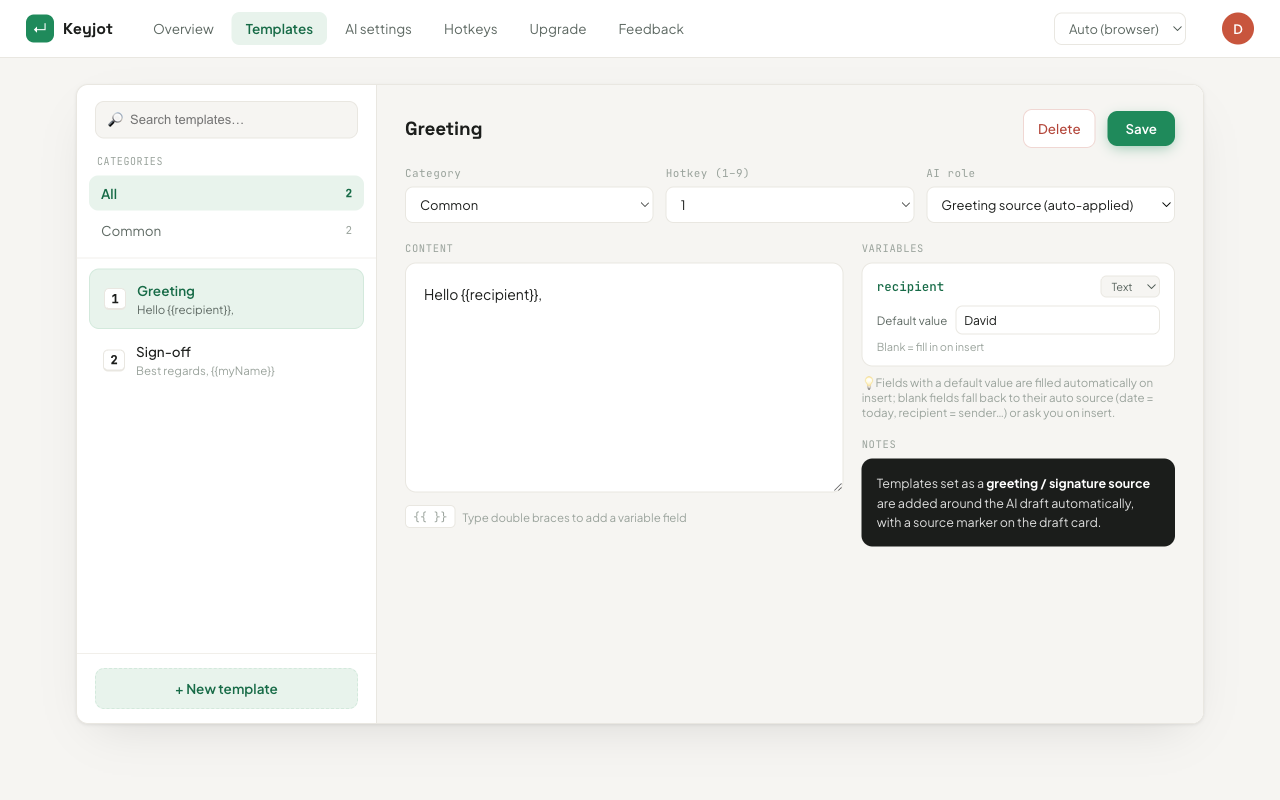
Keyjot opens beside the cursor with one rebindable hotkey. Number keys insert deterministic templates with fillable variables; the AI option handles the replies whose wording cannot be saved in advance. In browser Slack, it works in standard editable fields without adding a permanent button or sidebar to the workspace.
Put every repeated Slack reply on one shortcut
Use the same template library in Slack, support tools, LinkedIn, CRMs, forums, and other standard browser text fields.
Add Keyjot to ChromeQuestions
Does Slack have canned responses?
Slack does not provide a personal saved-reply library in the regular message composer. You can keep replies in a document and paste them, or use a browser text expander to insert saved templates in channels, threads, and DMs.
Can I use the same canned responses outside Slack?
Yes, if the templates live in a browser text expander rather than inside one service. The same saved reply can then be inserted into standard fields in support tools, LinkedIn, CRMs, forums, and web forms.
Should a canned response be sent unchanged?
Only when the wording is deliberately fixed. For customer, incident, or sensitive conversations, fill every variable, add the specific context, and read the final message before sending.