Gmail templates: how to set them up, and where they run out
Gmail has had reusable templates for years — they are just switched off by default and hidden behind a three-dot menu inside the compose window. Turning them on takes about two minutes. Finding out what they cannot do takes about a week, so here is that part up front too.
Canned responses in Gmail: the same feature, renamed
If you are looking for Gmail canned responses, you are in the right place. Canned Responses was the name of this feature from its launch in Gmail Labs in 2008 until Google renamed it Templates and moved it out of Labs. The mechanics did not change: a saved reply lives in the compose window's menu, and inserting it drops the saved text into the message. Any older guide that says “enable Canned Responses under Labs” is describing the setting that now reads “Templates” on the Advanced tab.
Whichever name you use, the feature is limited to email, and only Gmail's compose box — the same canned responses cannot be inserted into a support console, Slack, or LinkedIn from here. If you need the replies in more than one place, see canned responses: meaning and 40 examples for wording that travels, and the section below on keeping them outside Gmail.
Turning them on
Templates are a Gmail setting, not an add-on, and they are off until you enable them. They used to be called Canned Responses, which is why older instructions use that name.
- In Gmail on the web, click the gear icon at the top right, then See all settings.
- Open the Advanced tab, set Templates to Enable, and click Save Changes. Gmail reloads itself.
- Click Compose and type the message you want to reuse. The subject line is saved with it.
- In the compose window, open the three-dot “More options” menu at the bottom right → Templates → Save draft as template → Save as new template.
- To use it later: in any compose or reply window, the same three-dot menu → Templates → click it under Insert template.
To update one, insert it, edit the text, then go back to Save draft as template and choose the existing template name to overwrite it instead of creating a new one.
Bonus that few people find: Gmail filters can send a template automatically. Create a filter, and Send template appears as one of the actions. Genuinely useful for mechanical acknowledgements — "we got your form" — and a bad idea for anything requiring judgement, since a filter cannot read the message it is answering.
Gmail templates not showing? Check these five places
If the Templates option is missing, the feature is usually disabled or you are looking in a menu where Gmail does not show it. Work through these checks in order:
- Use Gmail in a desktop browser. The Gmail mobile apps do not expose the same Templates menu.
- Go back to Settings → See all settings → Advanced and confirm Templates is set to Enable.
- Click Save Changes at the bottom of Settings, then reload Gmail and open a new compose window.
- Look in the three-dot More options menu inside the compose or reply window, not Gmail's top-level settings menu.
- If the menu is present but empty, save the message through Templates → Save draft as template. An ordinary draft does not appear under Insert template automatically.
These checks also apply when Canned Responses seem to have disappeared: Google renamed the feature Templates, so there is no separate Canned Responses switch to restore.
The five limits people hit
1. There is no keyboard shortcut
This is the big one, and it has no workaround inside Gmail. Every single insertion is a mouse trip: click the three dots, hover Templates, wait for the submenu, find the name, click. Four interactions to place text you have already written. If you insert templates a dozen times a day, this is where the saved time goes back out.
2. Templates are static text
There are no variables. No {{recipient}}, no date, no order number. Which means
the templates that would help most — the ones with a name and a specific detail in them — are
exactly the ones you have to hand-edit after inserting. You end up either leaving awkward
blanks in the saved copy or retyping the personal half every time.
3. It is Gmail, and only Gmail
The moment the conversation moves to LinkedIn, a support console, a forum, a web form, or Outlook, the templates are gone. For most people the same handful of stock answers is needed in three or four different places, and Gmail's feature covers exactly one of them.
4. Fifty templates, and no folders
Gmail caps saved templates at 50. Fine personally; tight for a support workflow. There is also no grouping or search within the menu — it is one flat alphabetical list, so the list itself becomes the bottleneck well before you reach the cap.
5. Templates cannot help with the non-repeating half
This is the structural one. A template only pays off for messages you send repeatedly in near-identical form. Most inboxes are not shaped like that: there is a stack of near-identical messages, and a much longer tail of ones that are each a little different. Templates do nothing for the tail, and the tail is usually what makes the afternoon disappear.
What to do about each one
Limits 1 to 4 are all "the feature works, the ergonomics don't", and a browser extension fixes that class of problem — it can put templates behind a keystroke, add variables, and work on every site instead of one. Limit 5 is different in kind: no template system solves it, because the text does not exist yet. That needs generation.
How Keyjot handles it
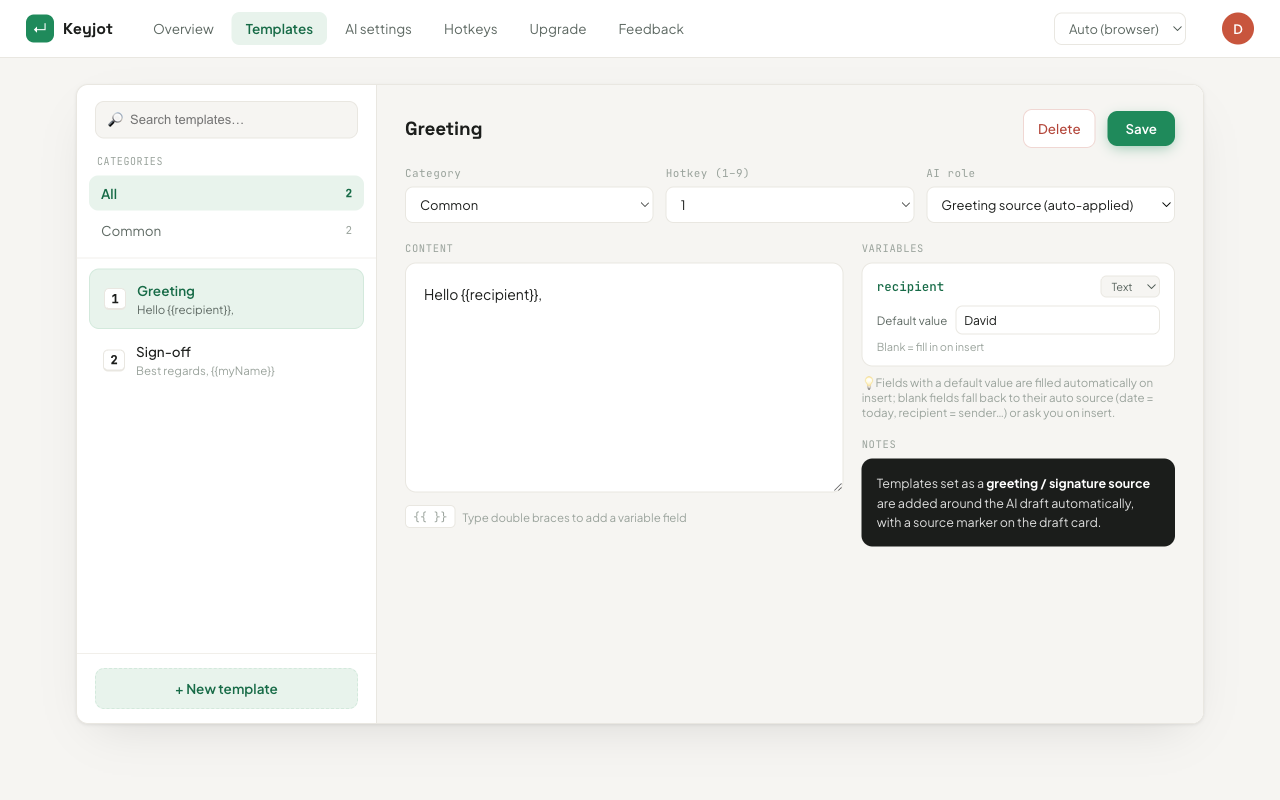
Keyjot is a Chrome extension built around exactly these five gaps. One keystroke — ⌘ ; on macOS, Ctrl ; on Windows and Linux, and rebindable if it collides with something — opens a command window beside your cursor. Then:
- Number keys instead of a menu. 1–9 insert your saved templates. No mouse.
- Variables.
{{recipient}}and{{order_no}}-style slots are detected automatically and asked for at insert time rather than left as blanks to find. - Every site, not just Gmail. It works in standard inputs, textareas, and rich-text fields — Gmail, Outlook, LinkedIn, support consoles, forums.
- Unlimited templates. No cap, and they never consume tokens.
- The long tail. The same window can draft a reply from the message you are answering plus one line of intent, wrap it in your saved greeting and sign-off, and switch between formal, friendly, short, and decline.
Pricing is a one-time $3.99 access pass including 100 AI reply tokens, one per generated reply; templates and hotkeys are unlimited and unmetered. Message text, generated drafts, saved templates, and key points are excluded from analytics — the privacy policy has the full detail.
If Gmail's built-in templates cover your case, use them — they are free and they are already in the product. This page exists because for a lot of people they cover about half of it.
Templates on a keystroke, on every site
Keyjot is available now on the Chrome Web Store.
Add to Chrome — $3.99 one-timeQuestions
Where did Canned Responses go?
Nowhere — it was renamed. The feature is now called Templates and lives in the same place, under Settings → See all settings → Advanced.
Why are Gmail templates not showing?
First confirm you are using Gmail in a desktop browser. Then open Settings → See all settings → Advanced, set Templates to Enable, save the change, and reload Gmail. The menu appears under the three-dot More options button inside a compose or reply window. If that menu is empty, save a message with Templates → Save draft as template first.
Is there a keyboard shortcut for Gmail templates?
No. Gmail provides no shortcut for inserting one; every insertion goes through the three-dot More options menu in the compose window. Enabling Gmail's general keyboard shortcuts does not add one either.
Do Gmail templates sync to the mobile app?
Templates are a Gmail web feature. The mobile apps do not expose the same insert menu, so plan on them being a desktop-browser workflow.
Can I share templates with my team?
Not through Gmail's built-in feature — saved templates belong to your account only. Shared, governed template libraries are what the team tiers of dedicated snippet tools are for.
Does Keyjot replace Gmail templates or sit alongside them?
Either. They are independent — Gmail's own templates keep working whether or not the extension is installed. In practice people move the ones they insert most often across, because the number-key trigger is the part that saves the time.